> ## Documentation Index
> Fetch the complete documentation index at: https://portkey-docs-feat-rerank-documentation.mintlify.site/llms.txt
> Use this file to discover all available pages before exploring further.
# Web Search for Any LLM in LibreChat
> Enable real-time internet search capabilities for any LLM in LibreChat using Portkey's Exa integration
Transform your LibreChat experience by adding web search capabilities to any LLM - whether it's GPT-5, Claude, Llama, or any of the 1,600+ models supported by Portkey. This guide shows you how to combine LibreChat, Portkey, and Exa to create a powerful AI chat interface with real-time internet access.
This integration builds upon the basic [LibreChat + Portkey setup](/integrations/libraries/librechat). Please complete that integration first before proceeding.
## What You'll Get
By following this guide, your LibreChat installation will have:
* ✅ **Web search for any LLM** - Not just OpenAI's browsing models
* ✅ **Real-time information** - Access to current events, latest data, and up-to-date facts
* ✅ **All Portkey features** - Observability, caching, fallbacks, and more
* ✅ **Unified interface** - One LibreChat setup for all your AI needs
* ✅ **1,600+ LLM support** - Use web search with any model through Portkey
## How It Works
When you send a message requiring current information
Portkey intercepts the request and triggers the Exa plugin
Relevant search results are fetched from across the internet
Search results are added to your prompt as additional context
Your chosen LLM now has access to real-time data to answer accurately
## Prerequisites
Before starting, ensure you have:
1. ✅ [LibreChat installed and running](https://www.librechat.ai/docs/quick_start/local_setup)
2. ✅ [Basic Portkey + LibreChat integration](/integrations/libraries/librechat) completed
3. ✅ [Portkey account](https://app.portkey.ai) with API key
4. ✅ [Exa account](https://exa.ai) with API key
## Setup Guide
### Step 1: Enable Exa Plugin in Portkey
First, activate the Exa plugin in your Portkey account:
1. Log into your [Portkey dashboard](https://app.portkey.ai)
2. Navigate to `Settings` → `Plugins` in the sidebar
3. Find **Exa** in the list of available plugins
4. Click **Enable** and enter your Exa API key
5. Save your settings
 ### Step 2: Create an Exa Guardrail
Next, create a guardrail that will add web search to your requests:
1. Go to the `Guardrails` page in Portkey
2. Click `Create New Guardrail`
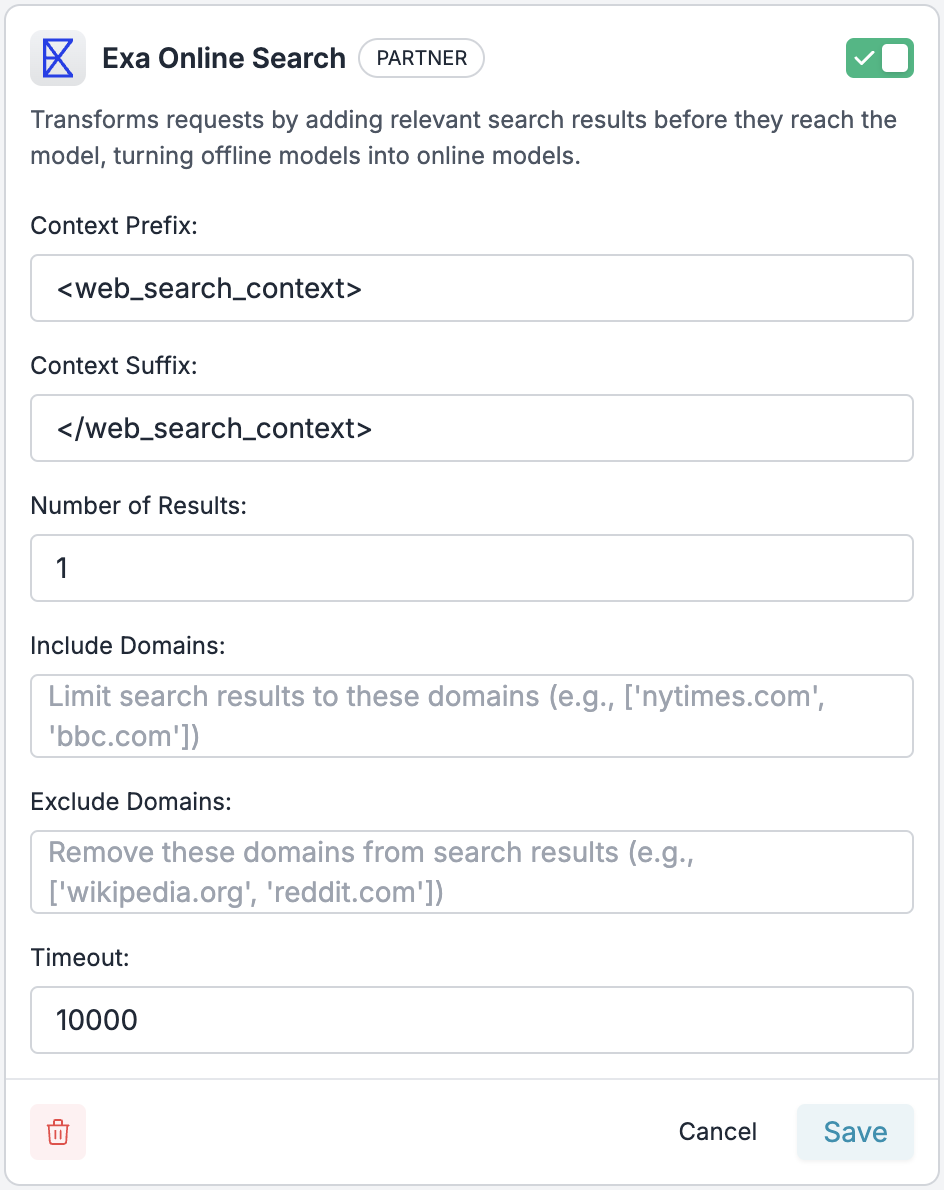
3. Search for **"Exa Online Search"** and click `Add`
4. Configure the following parameters:
```json theme={"system"}
{
"context_prefix": "",
"context_suffix": "",
"num_results": 3,
"timeout": 10000
}
```
**Recommended Settings:**
* **Number of Results**: 3-5 (balances information vs token usage)
* **Timeout**: 10000ms (10 seconds)
* **Include/Exclude Domains**: Leave empty for general use, or specify trusted sources
5. Set the action to `passthrough` (default)
6. Save the guardrail and copy the **Guardrail ID**
### Step 3: Create a Config with Web Search
Now create a Portkey config that includes your Exa guardrail:
1. Navigate to `Configs` in the Portkey dashboard
2. Click `Create New Config`
3. Add your configuration:
```json Config theme={"system"}
{
"input_guardrails": ["your_exa_guardrail_id"]
}
```
4. Save the config and note the **Config ID** (e.g., `pc-websearch-xxx`)
### Step 4: Update Your LibreChat Configuration
Finally, update your LibreChat setup to use the web-search enabled config:
1. Edit your `librechat.yaml` file:
```yaml librechat.yaml theme={"system"}
version: 1.1.4
cache: true
endpoints:
custom:
- name: "Portkey with Web Search"
apiKey: "dummy"
baseURL: ${PORTKEY_GATEWAY_URL}
headers:
x-portkey-api-key: "${PORTKEY_API_KEY}"
x-portkey-config: "pc-websearch-xxx" # Your config ID from Step 3
models:
default: ["@openai-prod/gpt-5", "@anthropic-prod/claude-4.5-sonnet", "@together-ai-prod/llama-4-70b"]
fetch: true
titleConvo: true
titleModel: "current_model"
summarize: false
summaryModel: "current_model"
forcePrompt: false
modelDisplayLabel: "Portkey:WebSearch"
```
2. Restart your LibreChat instance
### Step 5: Test Your Setup
1. Open LibreChat in your browser
2. Select **"Portkey with Web Search"** as your endpoint
3. Try asking questions that require current information:
```
"What happened in the tech industry today?"
"What's the current price of Bitcoin?"
"Who won the latest sports championship?"
"What are the latest AI model releases?"
```
You should see responses with up-to-date information pulled from the web!
## Advanced Configuration
### Domain Filtering
For specialized use cases, you can limit search results to specific domains:
```json Config theme={"system"}
{
"input_guardrails": ["your_exa_guardrail_id"]
}
```
In your Exa guardrail settings:
* **Include Domains**: `["arxiv.org", "nature.com", "pubmed.ncbi.nlm.nih.gov"]` (for academic research)
* **Exclude Domains**: `["reddit.com", "twitter.com"]` (to avoid social media)
### Multiple Configurations
Create different configs for different use cases:
```yaml librechat.yaml theme={"system"}
endpoints:
custom:
- name: "AI Research Assistant"
apiKey: "dummy"
baseURL: ${PORTKEY_GATEWAY_URL}
headers:
x-portkey-api-key: "${PORTKEY_API_KEY}"
x-portkey-config: "pc-research-xxx" # Config with academic domains
models:
default: ["@openai-prod/gpt-5"]
modelDisplayLabel: "Research:WebSearch"
- name: "News & Current Events"
apiKey: "dummy"
baseURL: ${PORTKEY_GATEWAY_URL}
headers:
x-portkey-api-key: "${PORTKEY_API_KEY}"
x-portkey-config: "pc-news-xxx" # Config with news domains
models:
default: ["@anthropic-prod/claude-4.5-sonnet"]
modelDisplayLabel: "News:WebSearch"
```
### Combining with Other Portkey Features
Enhance your web-search enabled config with additional Portkey features:
```json Config theme={"system"}
{
"input_guardrails": ["your_exa_guardrail_id"],
"output_guardrails": ["content_safety_guardrail_id"],
"cache": {"mode": "semantic", "max_age": 3600},
"retry": {"attempts": 3},
"override_params": {"temperature": 0.7}
}
```
## Monitoring Web Search Usage
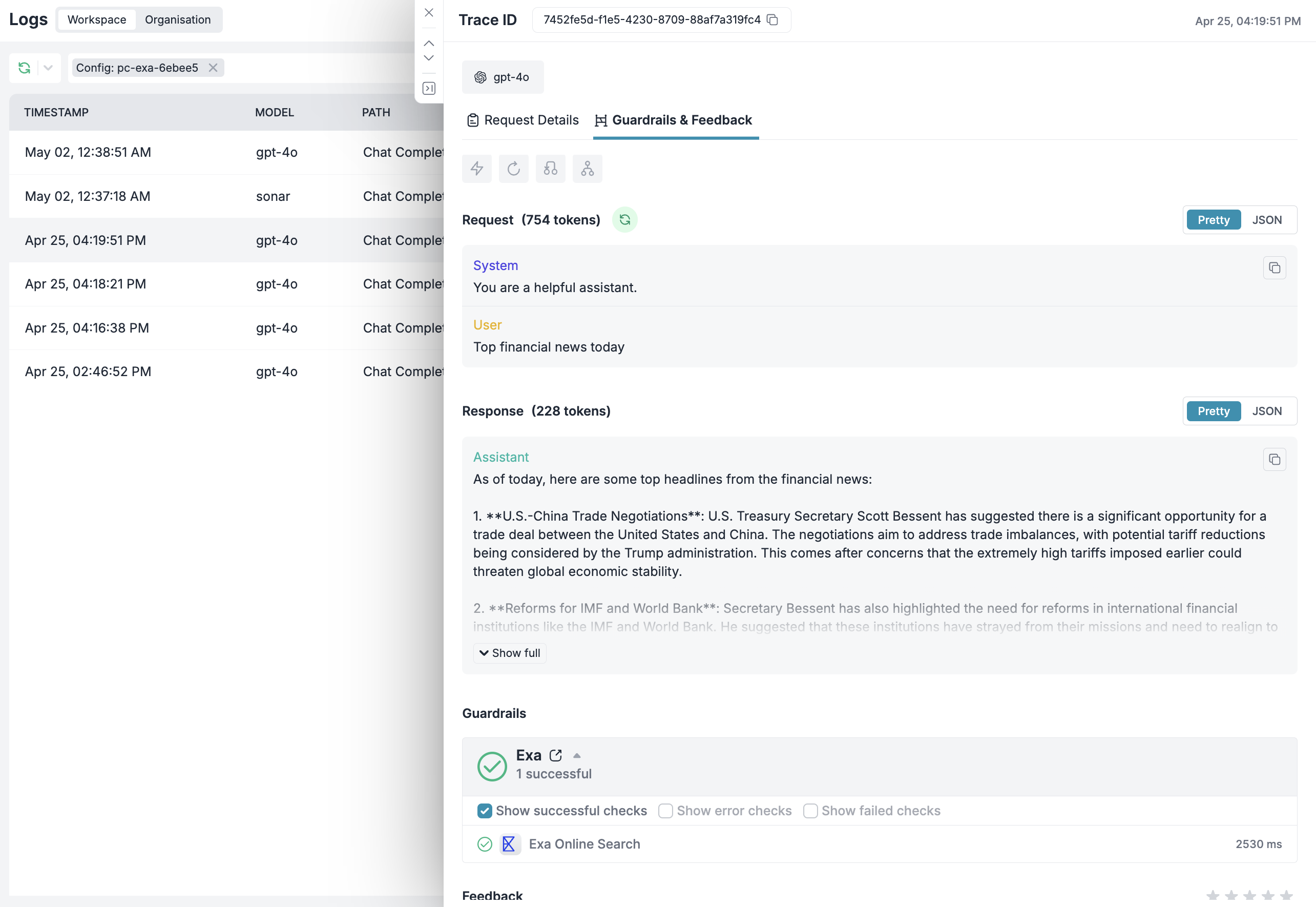
Track your web-search enhanced conversations in the Portkey dashboard:
1. Navigate to **Logs** in Portkey
2. Filter by config ID to see web-search requests
3. Click on individual logs to see:
* The original user query
* Web search results added as context
* Token usage (including search context)
* Response time and costs
### Step 2: Create an Exa Guardrail
Next, create a guardrail that will add web search to your requests:
1. Go to the `Guardrails` page in Portkey
2. Click `Create New Guardrail`
3. Search for **"Exa Online Search"** and click `Add`
4. Configure the following parameters:
```json theme={"system"}
{
"context_prefix": "",
"context_suffix": "",
"num_results": 3,
"timeout": 10000
}
```
**Recommended Settings:**
* **Number of Results**: 3-5 (balances information vs token usage)
* **Timeout**: 10000ms (10 seconds)
* **Include/Exclude Domains**: Leave empty for general use, or specify trusted sources
5. Set the action to `passthrough` (default)
6. Save the guardrail and copy the **Guardrail ID**
### Step 3: Create a Config with Web Search
Now create a Portkey config that includes your Exa guardrail:
1. Navigate to `Configs` in the Portkey dashboard
2. Click `Create New Config`
3. Add your configuration:
```json Config theme={"system"}
{
"input_guardrails": ["your_exa_guardrail_id"]
}
```
4. Save the config and note the **Config ID** (e.g., `pc-websearch-xxx`)
### Step 4: Update Your LibreChat Configuration
Finally, update your LibreChat setup to use the web-search enabled config:
1. Edit your `librechat.yaml` file:
```yaml librechat.yaml theme={"system"}
version: 1.1.4
cache: true
endpoints:
custom:
- name: "Portkey with Web Search"
apiKey: "dummy"
baseURL: ${PORTKEY_GATEWAY_URL}
headers:
x-portkey-api-key: "${PORTKEY_API_KEY}"
x-portkey-config: "pc-websearch-xxx" # Your config ID from Step 3
models:
default: ["@openai-prod/gpt-5", "@anthropic-prod/claude-4.5-sonnet", "@together-ai-prod/llama-4-70b"]
fetch: true
titleConvo: true
titleModel: "current_model"
summarize: false
summaryModel: "current_model"
forcePrompt: false
modelDisplayLabel: "Portkey:WebSearch"
```
2. Restart your LibreChat instance
### Step 5: Test Your Setup
1. Open LibreChat in your browser
2. Select **"Portkey with Web Search"** as your endpoint
3. Try asking questions that require current information:
```
"What happened in the tech industry today?"
"What's the current price of Bitcoin?"
"Who won the latest sports championship?"
"What are the latest AI model releases?"
```
You should see responses with up-to-date information pulled from the web!
## Advanced Configuration
### Domain Filtering
For specialized use cases, you can limit search results to specific domains:
```json Config theme={"system"}
{
"input_guardrails": ["your_exa_guardrail_id"]
}
```
In your Exa guardrail settings:
* **Include Domains**: `["arxiv.org", "nature.com", "pubmed.ncbi.nlm.nih.gov"]` (for academic research)
* **Exclude Domains**: `["reddit.com", "twitter.com"]` (to avoid social media)
### Multiple Configurations
Create different configs for different use cases:
```yaml librechat.yaml theme={"system"}
endpoints:
custom:
- name: "AI Research Assistant"
apiKey: "dummy"
baseURL: ${PORTKEY_GATEWAY_URL}
headers:
x-portkey-api-key: "${PORTKEY_API_KEY}"
x-portkey-config: "pc-research-xxx" # Config with academic domains
models:
default: ["@openai-prod/gpt-5"]
modelDisplayLabel: "Research:WebSearch"
- name: "News & Current Events"
apiKey: "dummy"
baseURL: ${PORTKEY_GATEWAY_URL}
headers:
x-portkey-api-key: "${PORTKEY_API_KEY}"
x-portkey-config: "pc-news-xxx" # Config with news domains
models:
default: ["@anthropic-prod/claude-4.5-sonnet"]
modelDisplayLabel: "News:WebSearch"
```
### Combining with Other Portkey Features
Enhance your web-search enabled config with additional Portkey features:
```json Config theme={"system"}
{
"input_guardrails": ["your_exa_guardrail_id"],
"output_guardrails": ["content_safety_guardrail_id"],
"cache": {"mode": "semantic", "max_age": 3600},
"retry": {"attempts": 3},
"override_params": {"temperature": 0.7}
}
```
## Monitoring Web Search Usage
Track your web-search enhanced conversations in the Portkey dashboard:
1. Navigate to **Logs** in Portkey
2. Filter by config ID to see web-search requests
3. Click on individual logs to see:
* The original user query
* Web search results added as context
* Token usage (including search context)
* Response time and costs
 ## Best Practices
Monitor token usage as web search adds context. Adjust the number of search results based on your needs and budget.
Some models handle web context better than others. Test different models to find the best fit for your use case.
Not every query needs web search. Consider creating separate endpoints for general chat vs. current information needs.
Use semantic caching for frequently asked current events questions to reduce API calls and costs.
## Next Steps
* **Try different models** with web search to compare performance
* **Monitor costs** using Portkey's analytics dashboard
* **Create specialized configs** for your team's specific use cases
* **Set up access controls** with user-specific API keys
## Support
Need help? Contact us:
* Email: [support@portkey.ai](mailto:support@portkey.ai)
* [Documentation](https://docs.portkey.ai)
* [Discord Community](https://portkey.sh/discord-report)
## Best Practices
Monitor token usage as web search adds context. Adjust the number of search results based on your needs and budget.
Some models handle web context better than others. Test different models to find the best fit for your use case.
Not every query needs web search. Consider creating separate endpoints for general chat vs. current information needs.
Use semantic caching for frequently asked current events questions to reduce API calls and costs.
## Next Steps
* **Try different models** with web search to compare performance
* **Monitor costs** using Portkey's analytics dashboard
* **Create specialized configs** for your team's specific use cases
* **Set up access controls** with user-specific API keys
## Support
Need help? Contact us:
* Email: [support@portkey.ai](mailto:support@portkey.ai)
* [Documentation](https://docs.portkey.ai)
* [Discord Community](https://portkey.sh/discord-report)