> ## Documentation Index
> Fetch the complete documentation index at: https://portkey-docs-feat-rerank-documentation.mintlify.site/llms.txt
> Use this file to discover all available pages before exploring further.
# Phoenix(Arize) Open-Telemetry
> AI observability and debugging platform with OpenInference instrumentation and intelligent gateway routing
[Arize Phoenix](https://phoenix.arize.com/) is an open-source AI observability platform designed to help developers debug, monitor, and evaluate LLM applications. Phoenix provides powerful visualization tools and uses OpenInference instrumentation to automatically capture detailed traces of your AI system's behavior.
Phoenix's OpenInference instrumentation combined with Portkey's intelligent gateway provides comprehensive debugging capabilities with automatic trace collection, while adding routing optimization and resilience features to your LLM calls.
## Why Arize Phoenix + Portkey?
Powerful UI for exploring traces, spans, and debugging LLM behavior
Industry-standard semantic conventions for AI/LLM observability
Built-in tools for evaluating model performance and behavior
Portkey adds caching, fallbacks, and load balancing to every request
## Quick Start
### Prerequisites
* Python
* Portkey account with API key
* OpenAI API key (or add it to [Model Catalog](/product/model-catalog))
### Step 1: Install Dependencies
Install the required packages for Phoenix and Portkey integration:
```bash theme={"system"}
pip install arize-phoenix-otel openai openinference-instrumentation-openai portkey-ai
```
### Step 2: Configure OpenTelemetry Export
Set up the environment variables to send traces to Portkey:
```python theme={"system"}
import os
# Configure Portkey endpoint and authentication
os.environ["OTEL_EXPORTER_OTLP_ENDPOINT"] = "https://api.portkey.ai/v1/logs/otel"
os.environ["OTEL_EXPORTER_OTLP_HEADERS"] = "x-portkey-api-key=YOUR_PORTKEY_API_KEY"
```
### Step 3: Register Phoenix and Instrument OpenAI
Initialize Phoenix and enable OpenAI instrumentation:
```python theme={"system"}
from phoenix.otel import register
from openinference.instrumentation.openai import OpenAIInstrumentor
# Configure Phoenix tracer
register(set_global_tracer_provider=False)
# Instrument OpenAI
OpenAIInstrumentor().instrument()
```
### Step 4: Configure Portkey Gateway
Set up the OpenAI client with Portkey's gateway:
```python theme={"system"}
from openai import OpenAI
from portkey_ai import createHeaders
# Use Portkey's gateway for intelligent routing
client = OpenAI(
api_key="PORTKEY_API_KEY",
base_url="https://api.portkey.ai/v1",
default_headers=createHeaders(
api_key="PORTKEY_API_KEY",
provider="@openai-prod" # Your AI Provider slug from Model Catalog
)
)
```
### Step 5: Make Instrumented LLM Calls
Your LLM calls are now automatically traced by Phoenix and enhanced by Portkey:
```python theme={"system"}
# Make calls with automatic tracing
response = client.chat.completions.create(
messages=[{"role": "user", "content": "How does Phoenix help with AI debugging?"}],
model="gpt-4o",
temperature=0.7
)
print(response.choices[0].message.content)
# Phoenix captures:
# - Input/output pairs
# - Token usage
# - Latency metrics
# - Model parameters
#
# Portkey adds:
# - Gateway routing decisions
# - Cache hit/miss data
# - Fallback information
```
## Complete Example
Here's a full working example:
```python theme={"system"}
from phoenix.otel import register
from openinference.instrumentation.openai import OpenAIInstrumentor
import os
from openai import OpenAI
from portkey_ai import createHeaders
# Step 1: Configure Portkey endpoint
os.environ["OTEL_EXPORTER_OTLP_ENDPOINT"] = "https://api.portkey.ai/v1/logs/otel"
os.environ["OTEL_EXPORTER_OTLP_HEADERS"] = "x-portkey-api-key=YOUR_PORTKEY_API_KEY"
# Step 2: Register Phoenix and instrument OpenAI
register(set_global_tracer_provider=False)
OpenAIInstrumentor().instrument()
# Step 3: Configure Portkey Gateway
client = OpenAI(
api_key="PORTKEY_API_KEY",
base_url="https://api.portkey.ai/v1",
default_headers=createHeaders(
api_key="PORTKEY_API_KEY",
provider="@openai-prod"
)
)
# Step 4: Make instrumented calls
response = client.chat.completions.create(
messages=[
{"role": "system", "content": "You are a helpful AI assistant."},
{"role": "user", "content": "Explain how observability helps in production AI systems"}
],
model="gpt-4o",
temperature=0.7
)
print(response.choices[0].message.content)
```
## OpenInference Instrumentation
Phoenix uses OpenInference semantic conventions for AI observability:
### Automatic Capture
* **Messages**: Full conversation history with roles and content
* **Model Info**: Model name, temperature, and other parameters
* **Token Usage**: Input/output token counts for cost tracking
* **Errors**: Detailed error information when requests fail
* **Latency**: End-to-end request timing
### Supported Providers
Phoenix can instrument multiple LLM providers:
* OpenAI
* Anthropic
* Bedrock
* Vertex AI
* Azure OpenAI
* And more through OpenInference instrumentors
## Configuration Options
### Custom Span Attributes
Add custom attributes to your traces:
```python theme={"system"}
from opentelemetry import trace
tracer = trace.get_tracer(__name__)
with tracer.start_as_current_span("custom_operation") as span:
span.set_attribute("user.id", "user123")
span.set_attribute("session.id", "session456")
# Your LLM call here
response = client.chat.completions.create(...)
```
### Sampling Configuration
Control trace sampling for production environments:
```python theme={"system"}
from opentelemetry.sdk.trace.sampling import TraceIdRatioBased
# Sample 10% of traces
register(
set_global_tracer_provider=False,
sampler=TraceIdRatioBased(0.1)
)
```
## Troubleshooting
### Common Issues
Ensure both OTEL\_EXPORTER\_OTLP\_ENDPOINT and OTEL\_EXPORTER\_OTLP\_HEADERS are correctly set
Make sure to call OpenAIInstrumentor().instrument() before creating your OpenAI client
If using Phoenix UI locally, ensure Phoenix is running and properly configured
## Next Steps
Set up intelligent routing, fallbacks, and caching
Manage AI providers, credentials, and model access centrally
Analyze costs, performance, and usage patterns
Create custom evaluations for your AI system
***
## See Your Traces in Action
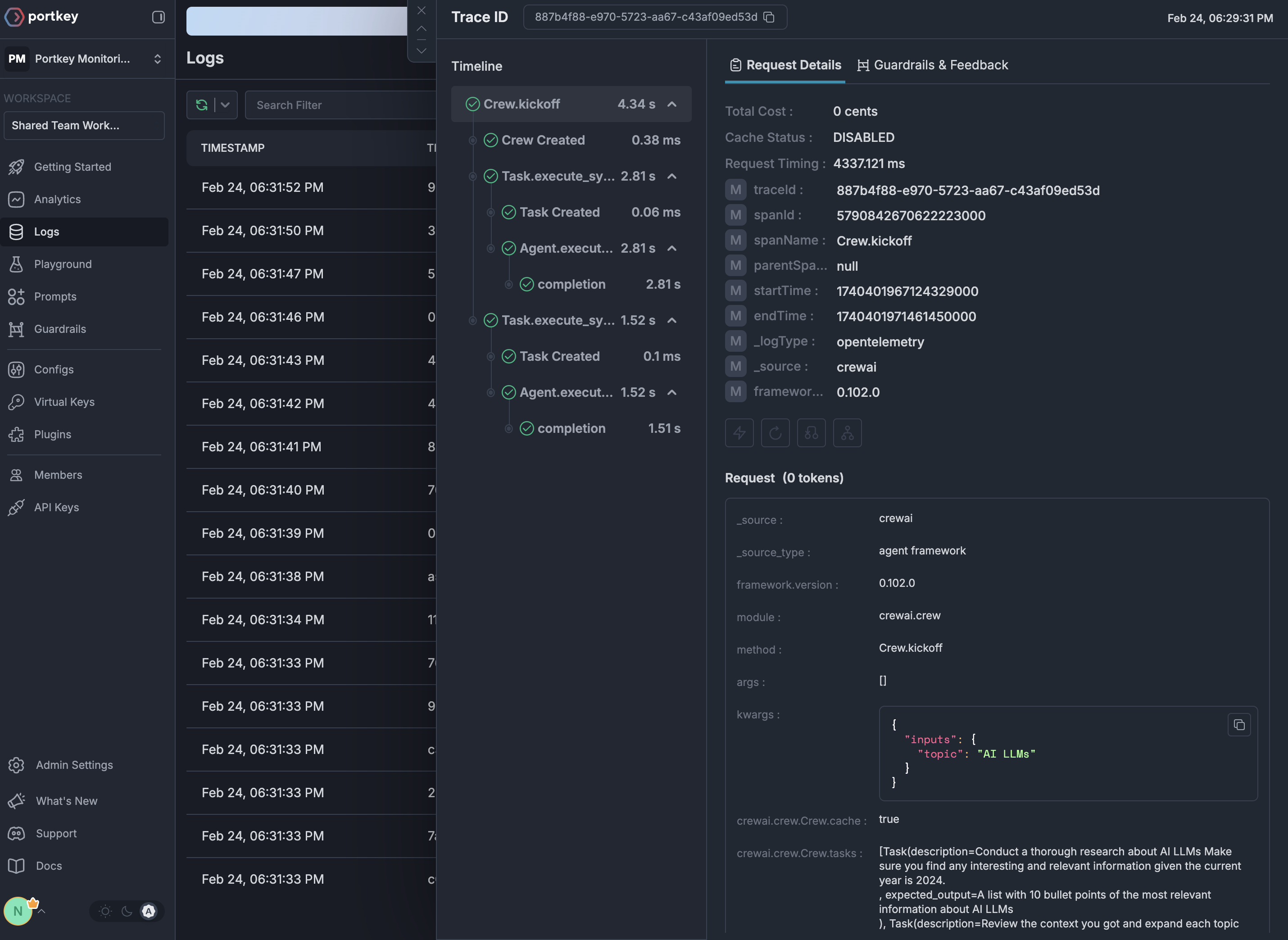
Once configured, navigate to the [Portkey dashboard](https://app.portkey.ai/logs) to see your Phoenix instrumentation combined with gateway intelligence: