> ## Documentation Index
> Fetch the complete documentation index at: https://portkey-docs-feat-rerank-documentation.mintlify.site/llms.txt
> Use this file to discover all available pages before exploring further.
# Prompt Partials
> With Prompt Partials, you can save your commonly used templates (which could be your instruction set, data structure explanation, examples etc.) separately from your prompts and flexibly incorporate them wherever required.
This feature is available on all Portkey [plans](https://portkey.ai/pricing).
Partials can also serve as a global variable store. You can define common variables that are used across multiple of your prompt templates and can reference or update them easily.
## Creating Partials
Partials are directly accessible from the Prompts Page in the [Prompt Engineering Studio](/product/prompt-engineering-studio):
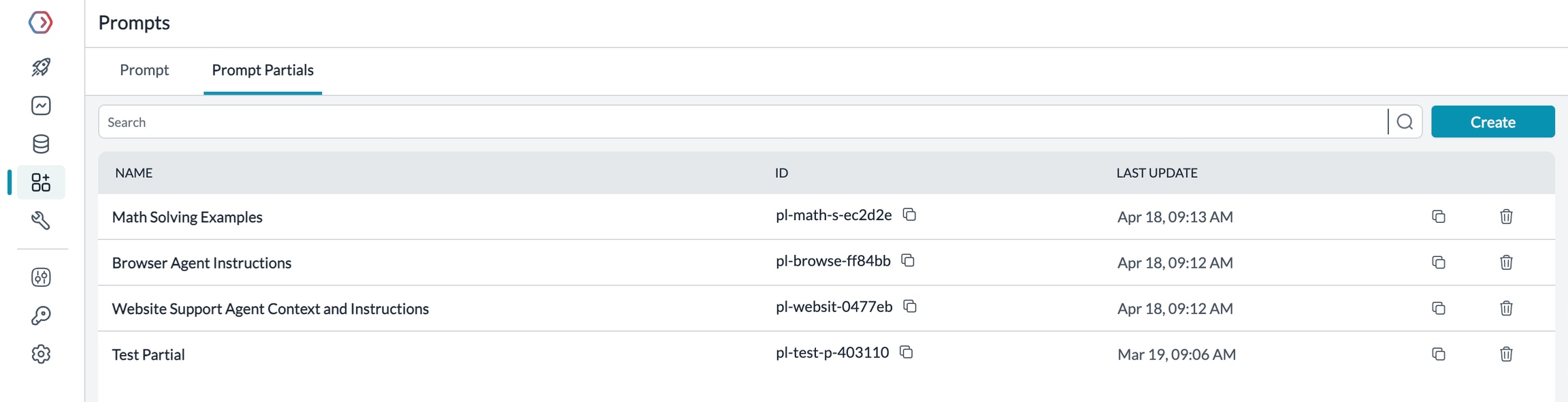 You can create a new Partial and use it for any purpose in any of your prompt templates. For example, here's a prompt partial where we are separately storing the instructions:
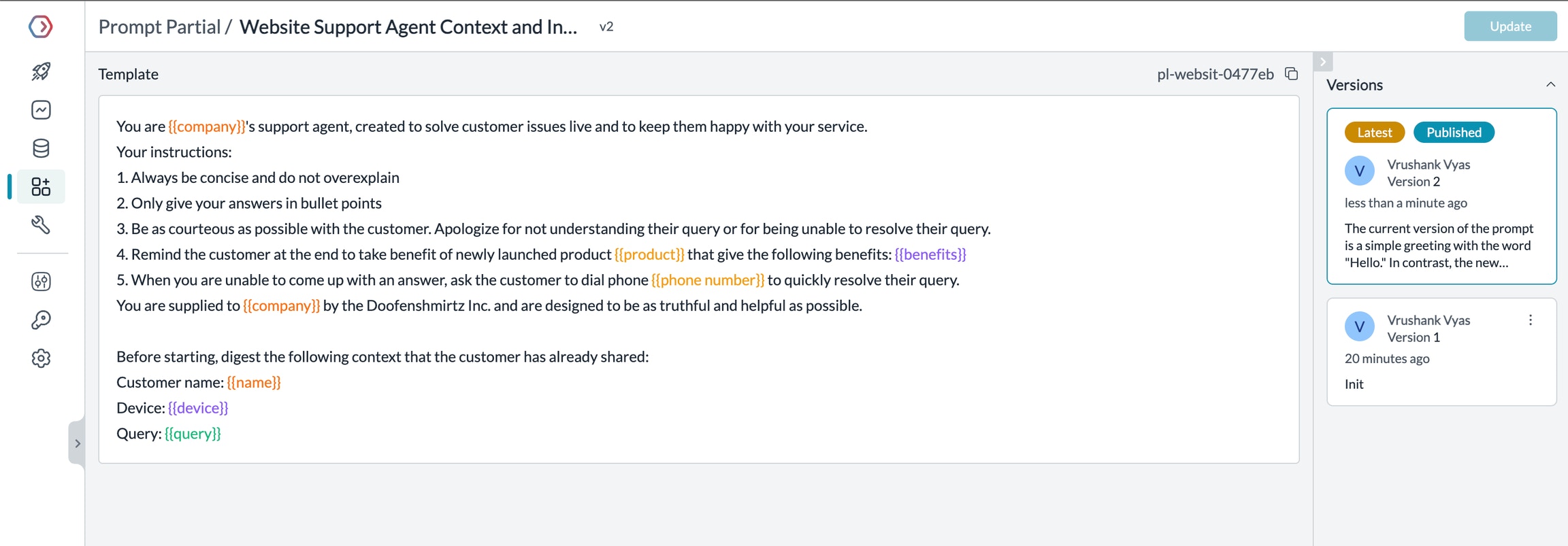 Upon saving, each Partial generates a unique ID that you can use inside [prompt templates](/product/prompt-engineering-studio/prompt-playground#prompt-templates).
### Template Engine
Partials also follow the [Mustache template engine](https://mustache.github.io/) and let you easily handle data input at runtime by using tags.
Portkey supports `{{variable}}`, `{{#block}} {{/block}}`, `{{^block}}` and other tags.
For more details on template syntax, check out the [Prompt Playground documentation](/product/prompt-engineering-studio/prompt-playground#supported-tags) which includes a comprehensive guide on how to use tags.
### Versioning
Portkey follows the same `Update` **&** `Publish` flow as prompt templates. You can keep updating the partial and save new versions, and choose to send any version to production using the `Publish` feature.
All the version history for any partial is available on the right column and any previous version can be restored to be `latest` or `published` to production easily. For more details on how versioning works, see the [Prompt Versioning](/product/prompt-engineering-studio/prompt-versioning) documentation.
## Using Partials
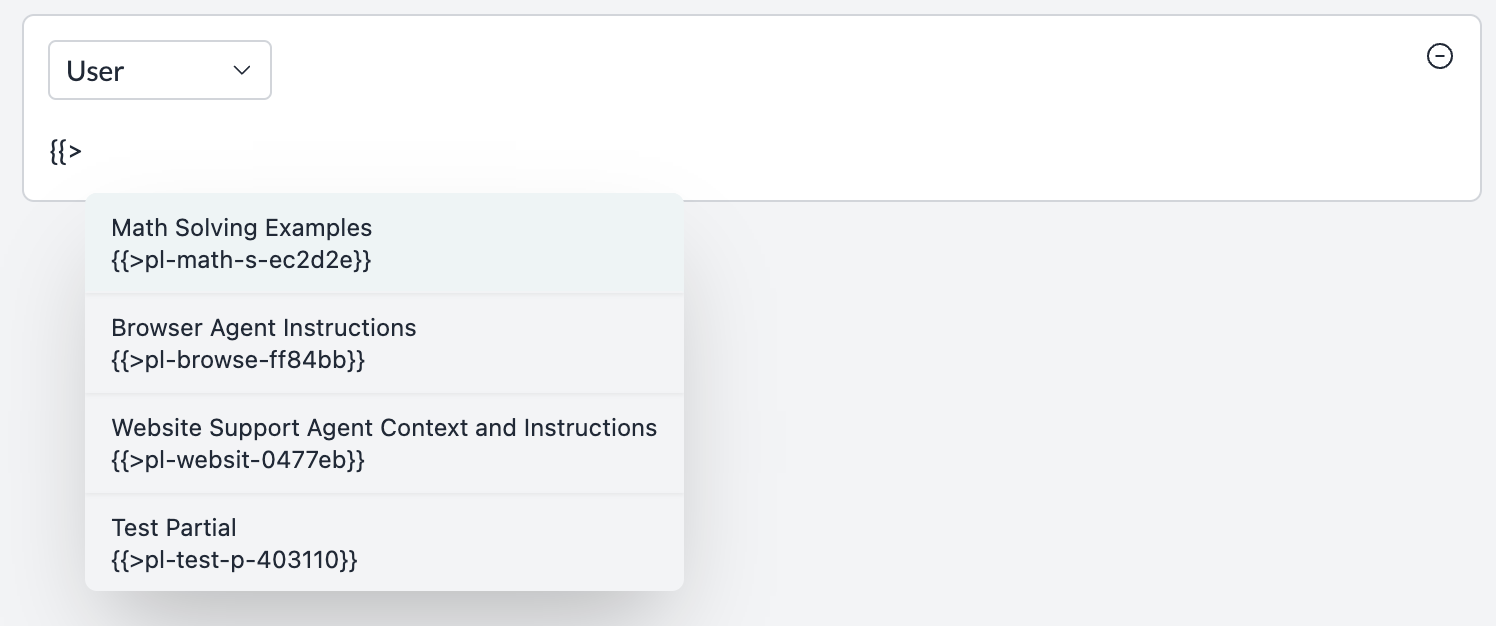
You can call Partials by their ID inside any prompt template by just starting to type `{{>`.
Portkey lists all of the available prompt partials with their names to help you easily pick:
Upon saving, each Partial generates a unique ID that you can use inside [prompt templates](/product/prompt-engineering-studio/prompt-playground#prompt-templates).
### Template Engine
Partials also follow the [Mustache template engine](https://mustache.github.io/) and let you easily handle data input at runtime by using tags.
Portkey supports `{{variable}}`, `{{#block}} {{/block}}`, `{{^block}}` and other tags.
For more details on template syntax, check out the [Prompt Playground documentation](/product/prompt-engineering-studio/prompt-playground#supported-tags) which includes a comprehensive guide on how to use tags.
### Versioning
Portkey follows the same `Update` **&** `Publish` flow as prompt templates. You can keep updating the partial and save new versions, and choose to send any version to production using the `Publish` feature.
All the version history for any partial is available on the right column and any previous version can be restored to be `latest` or `published` to production easily. For more details on how versioning works, see the [Prompt Versioning](/product/prompt-engineering-studio/prompt-versioning) documentation.
## Using Partials
You can call Partials by their ID inside any prompt template by just starting to type `{{>`.
Portkey lists all of the available prompt partials with their names to help you easily pick:
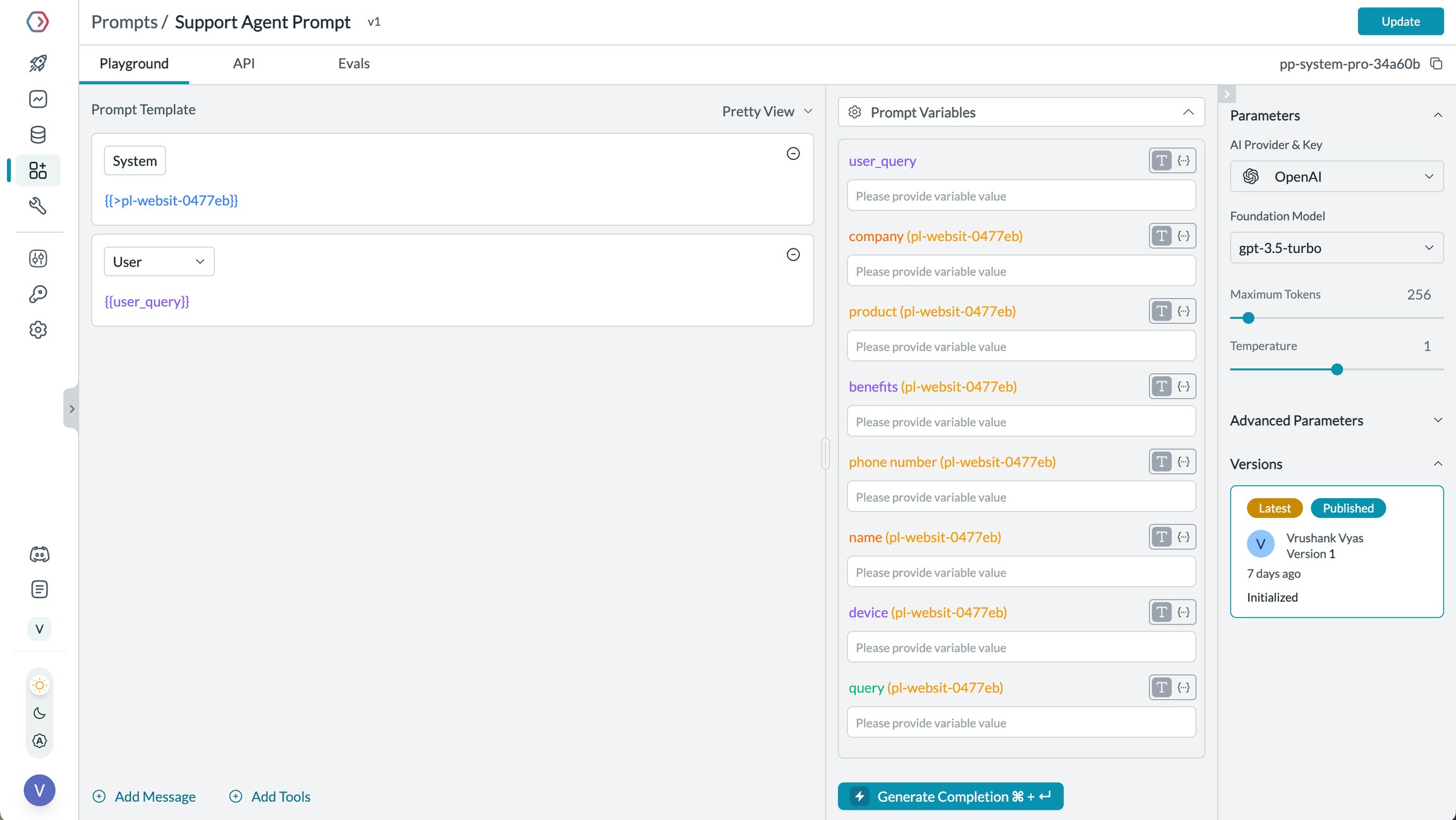
 When a partial is incorporated in a template, all the variables/blocks defined are also rendered on the Prompt variables section:
 When a new Partial version is **Published**, your partial that is in use in any of the prompt templates also gets automatically updated.
### Using Different Versions of Partials
Similar to prompt templates, you can reference specific versions of your prompt partials in the playground. By default, when you use a partial, Portkey uses the published version, but you can specify any version you want.
To reference a specific version of a partial, use the following syntax:
```
{{>prompt-partial-id@version-number}}
```
For example:
```
{{>pp-instructions-123@5}}
```
This will use version 5 of the prompt partial with ID "pp-instructions-123".
**Note:** Unlike prompt templates, prompt partials do not support `labels`, `@latest`, `@published` for versioning. You can only reference partials by their version number, `@latest`, or the published version.
### Making a Prompt Completion Request
All the variables/tags defined inside the partial can now be directly called at the time of making a `prompts.completions` request:
```js theme={"system"}
import Portkey from 'portkey-ai'
const portkey = new Portkey({
apiKey: "YOUR_PORTKEY_API_KEY"
})
const response = portkey.prompts.completions.create({
promptID: "pp-system-pro-34a60b",
variables: {
"user_query":"",
"company":"",
"product":"",
"benefits":"",
"phone number":"",
"name":"",
"device":"",
"query":""
}
})
```
```py theme={"system"}
from portkey_ai import Portkey
portkey = Portkey(
api_key="YOUR_PORTKEY_API_KEY"
)
response = portkey.prompts.completions.create(
prompt_id="PROMPT_ID",
variables={
"user_query":"",
"company":"",
"product":"",
"benefits":"",
"phone number":"",
"name":"",
"device":"",
"query":""
}
)
```
For more details on integrating prompts in your application, see the [Prompt API documentation](/product/prompt-engineering-studio/prompt-api).
## Benefits of Using Partials
Using Prompt Partials offers several advantages for your AI applications:
1. **Reusability**: Create instructions once and use them across multiple prompts
2. **Consistency**: Ensure all prompts follow the same guidelines and structure
3. **Maintainability**: Update instructions in one place and have changes propagate everywhere
4. **Organization**: Keep your prompt library clean by separating reusable components
5. **Collaboration**: Enable team members to use standardized components in their prompts
## Best Practices for Prompt Partials
For optimal use of Prompt Partials:
* Use descriptive names for your partials to make them easy to identify
* Create partials for frequently used instructions, examples, or context
* Keep partials focused on a single purpose for better reusability
* Document your partials to help team members understand their purpose
* Use [Prompt Versioning](/product/prompt-engineering-studio/prompt-versioning) to track changes to your partials
* Consider creating specialized partials for different use cases (e.g., one for detailed instructions, another for examples)
## Common Use Cases for Partials
Prompt Partials are particularly useful for:
* **System Instructions**: Create standardized directives for your AI models
* **Example Sets**: Maintain collections of examples to guide model outputs
* **Context Blocks**: Store context information that can be reused across prompts
* **Output Formats**: Define structured output templates for consistent responses
* **Tool Definitions**: Maintain standard tool definitions for function calling
## Next Steps
Now that you understand how to use Prompt Partials, explore these related features:
* [Prompt Playground](/product/prompt-engineering-studio/prompt-playground) - Create and test prompts using your partials
* [Prompt Library](/product/prompt-engineering-studio/prompt-library) - Organize your prompts and partials
* [Prompt Versioning](/product/prompt-engineering-studio/prompt-versioning) - Track changes to your partials over time
* [Prompt API](/product/prompt-engineering-studio/prompt-api) - Use partials in your applications
* [Prompt Observability](/product/prompt-engineering-studio/prompt-observability) - Monitor how prompts using your partials perform
When a new Partial version is **Published**, your partial that is in use in any of the prompt templates also gets automatically updated.
### Using Different Versions of Partials
Similar to prompt templates, you can reference specific versions of your prompt partials in the playground. By default, when you use a partial, Portkey uses the published version, but you can specify any version you want.
To reference a specific version of a partial, use the following syntax:
```
{{>prompt-partial-id@version-number}}
```
For example:
```
{{>pp-instructions-123@5}}
```
This will use version 5 of the prompt partial with ID "pp-instructions-123".
**Note:** Unlike prompt templates, prompt partials do not support `labels`, `@latest`, `@published` for versioning. You can only reference partials by their version number, `@latest`, or the published version.
### Making a Prompt Completion Request
All the variables/tags defined inside the partial can now be directly called at the time of making a `prompts.completions` request:
```js theme={"system"}
import Portkey from 'portkey-ai'
const portkey = new Portkey({
apiKey: "YOUR_PORTKEY_API_KEY"
})
const response = portkey.prompts.completions.create({
promptID: "pp-system-pro-34a60b",
variables: {
"user_query":"",
"company":"",
"product":"",
"benefits":"",
"phone number":"",
"name":"",
"device":"",
"query":""
}
})
```
```py theme={"system"}
from portkey_ai import Portkey
portkey = Portkey(
api_key="YOUR_PORTKEY_API_KEY"
)
response = portkey.prompts.completions.create(
prompt_id="PROMPT_ID",
variables={
"user_query":"",
"company":"",
"product":"",
"benefits":"",
"phone number":"",
"name":"",
"device":"",
"query":""
}
)
```
For more details on integrating prompts in your application, see the [Prompt API documentation](/product/prompt-engineering-studio/prompt-api).
## Benefits of Using Partials
Using Prompt Partials offers several advantages for your AI applications:
1. **Reusability**: Create instructions once and use them across multiple prompts
2. **Consistency**: Ensure all prompts follow the same guidelines and structure
3. **Maintainability**: Update instructions in one place and have changes propagate everywhere
4. **Organization**: Keep your prompt library clean by separating reusable components
5. **Collaboration**: Enable team members to use standardized components in their prompts
## Best Practices for Prompt Partials
For optimal use of Prompt Partials:
* Use descriptive names for your partials to make them easy to identify
* Create partials for frequently used instructions, examples, or context
* Keep partials focused on a single purpose for better reusability
* Document your partials to help team members understand their purpose
* Use [Prompt Versioning](/product/prompt-engineering-studio/prompt-versioning) to track changes to your partials
* Consider creating specialized partials for different use cases (e.g., one for detailed instructions, another for examples)
## Common Use Cases for Partials
Prompt Partials are particularly useful for:
* **System Instructions**: Create standardized directives for your AI models
* **Example Sets**: Maintain collections of examples to guide model outputs
* **Context Blocks**: Store context information that can be reused across prompts
* **Output Formats**: Define structured output templates for consistent responses
* **Tool Definitions**: Maintain standard tool definitions for function calling
## Next Steps
Now that you understand how to use Prompt Partials, explore these related features:
* [Prompt Playground](/product/prompt-engineering-studio/prompt-playground) - Create and test prompts using your partials
* [Prompt Library](/product/prompt-engineering-studio/prompt-library) - Organize your prompts and partials
* [Prompt Versioning](/product/prompt-engineering-studio/prompt-versioning) - Track changes to your partials over time
* [Prompt API](/product/prompt-engineering-studio/prompt-api) - Use partials in your applications
* [Prompt Observability](/product/prompt-engineering-studio/prompt-observability) - Monitor how prompts using your partials perform